To add or publish products, go to Store Design:
Currently, we provide three product-related sections: Product grid, Product carousel and Collection list. You can showcase your products using Product grid and Product carousel, and showcase your product collections/categories using Collection list.
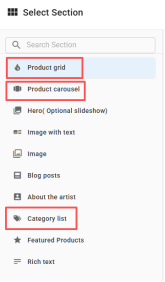
First, make sure you have already created your product collections/categories and products that can be added.
1. Adding Product Collections/Categories
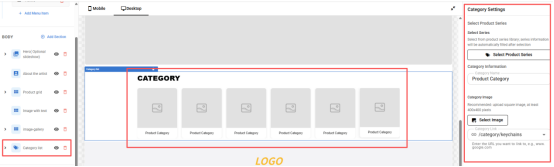
To add product collections, first add the Collection list section in your storefront.
In the left panel, expand the section to add multiple product collections.
In the right panel, you can select and add collections from the ones you have already created before.
2. Adding Products
If you are using the Store feature, to add products, start by adding the Product grid or Product carousel sections.
Similarly, in the left panel, expand the section to add multiple products.
In the right panel, you can select and add products from the ones you have already created.
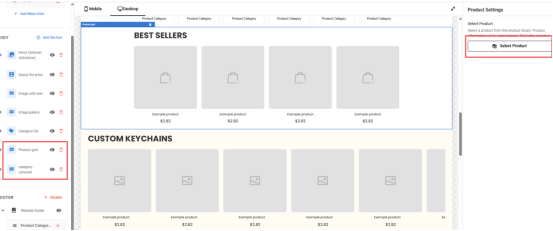
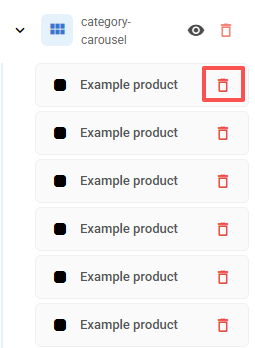
If you want to remove a product or a collection, simply expand the section in the left panel and click the delete button.
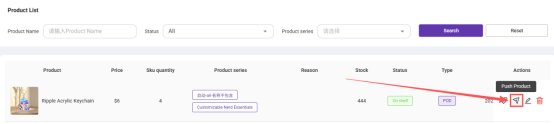
If you are using the Integration feature and want to add products in your connected store, then go to Product List:
First, make sure you have already created your products that can be added.
Then, find the product you want to add and click“Publish Product” in the actions.
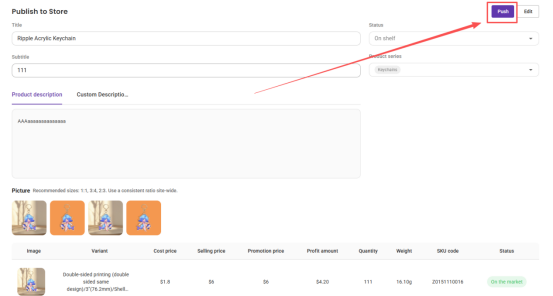
After confirming the product details, click the “Publish” button.
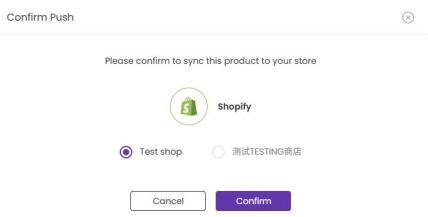
Choose the store where you want to publish the product and click “Confirm”. The product will then be successfully synced to your store dashboard.