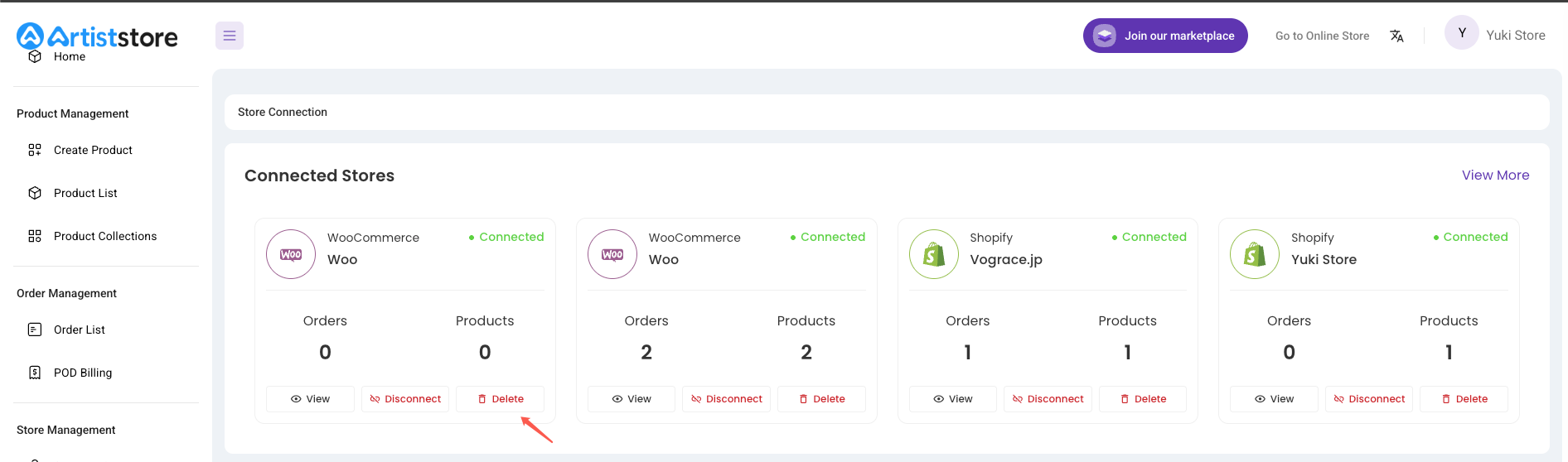
Welcome to using our integration tool to connect your WooCommerce store.
Please follow the steps below to complete the seamless integration between the Artiststore and WooCommerce.
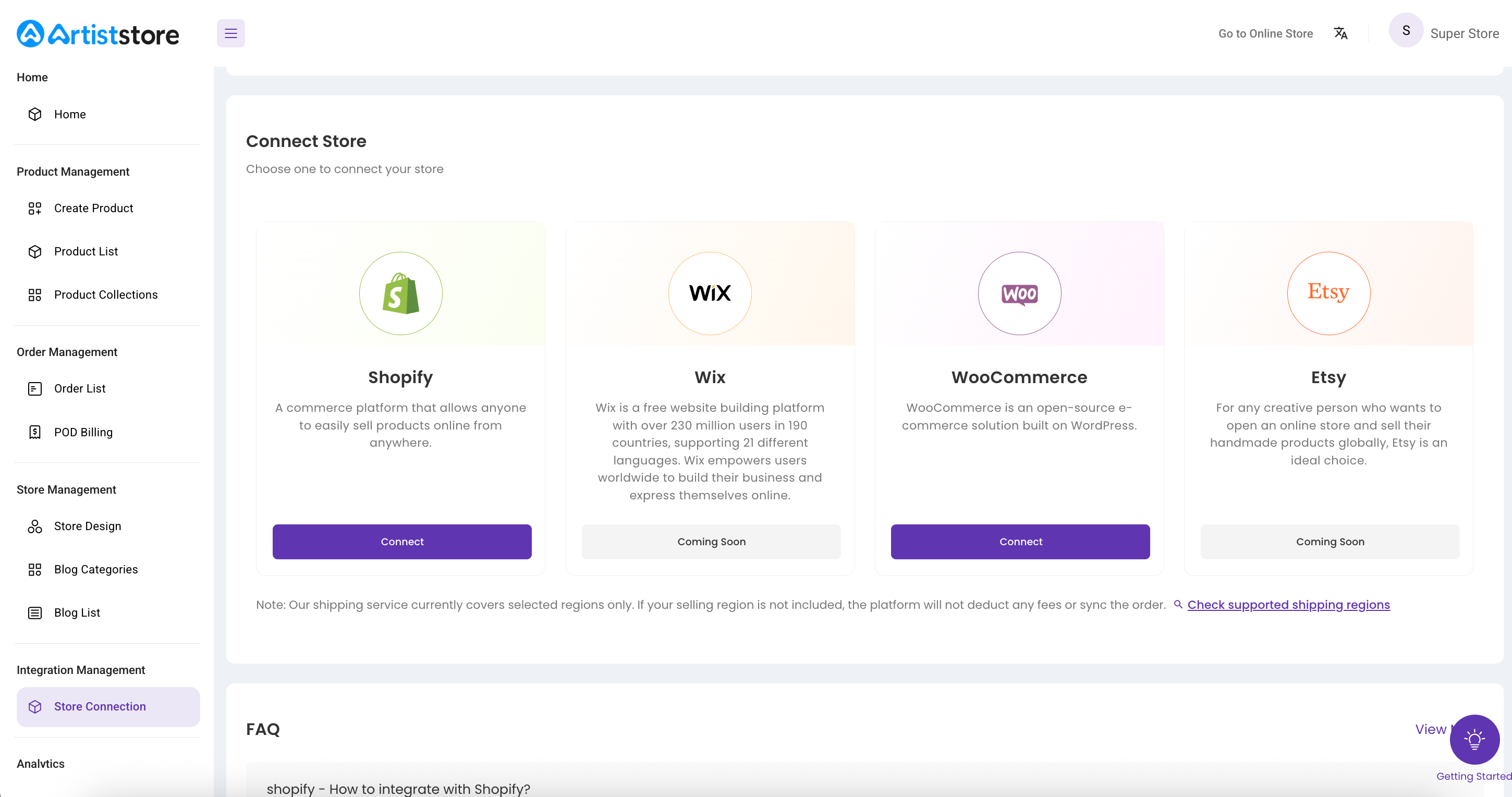
Step 1: On the Integration page in the dashboard, locate WooCommerce, click “Connect”, and find the link to download the plugin
Go to the designated page to download the official Artiststore plugin installation package.
Step 2: Download the plugin locally to your computer
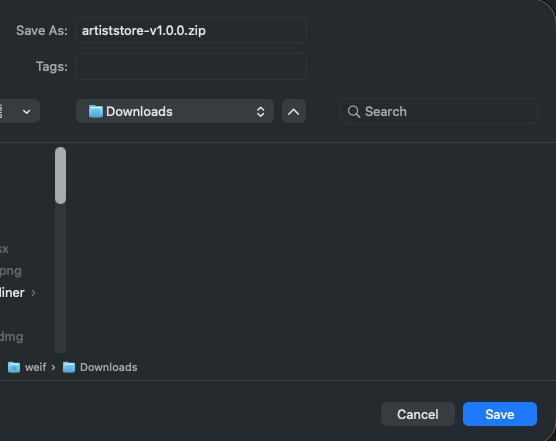
Step 3: Install the Artiststore plugin you just downloaded on the WooCommerce platform
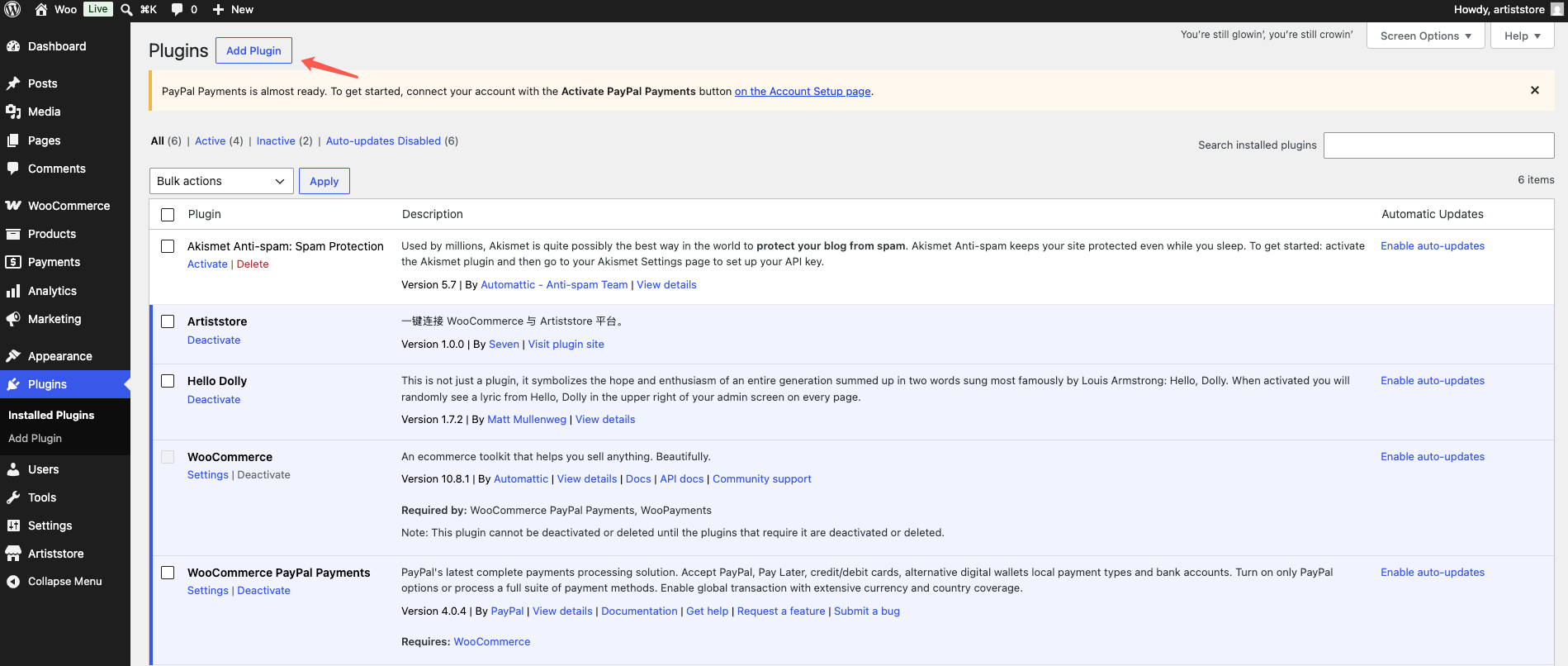
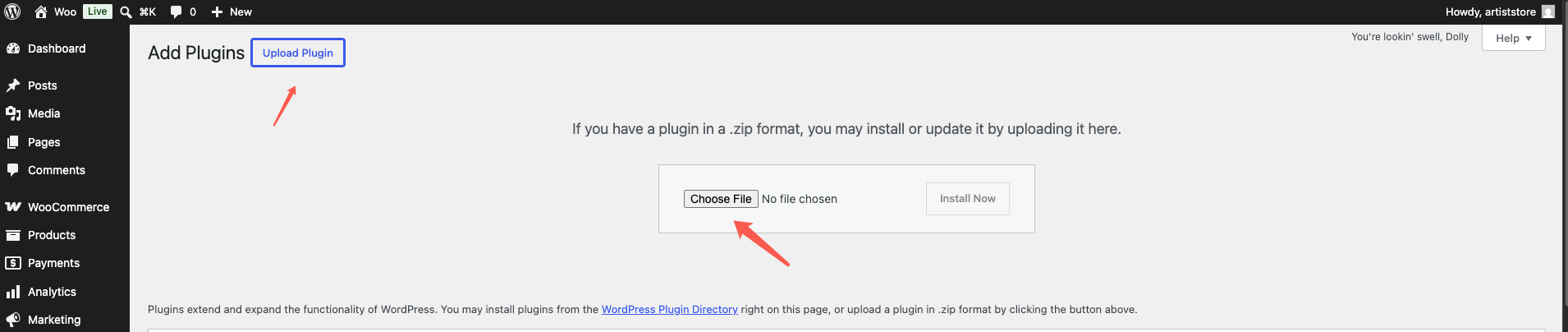
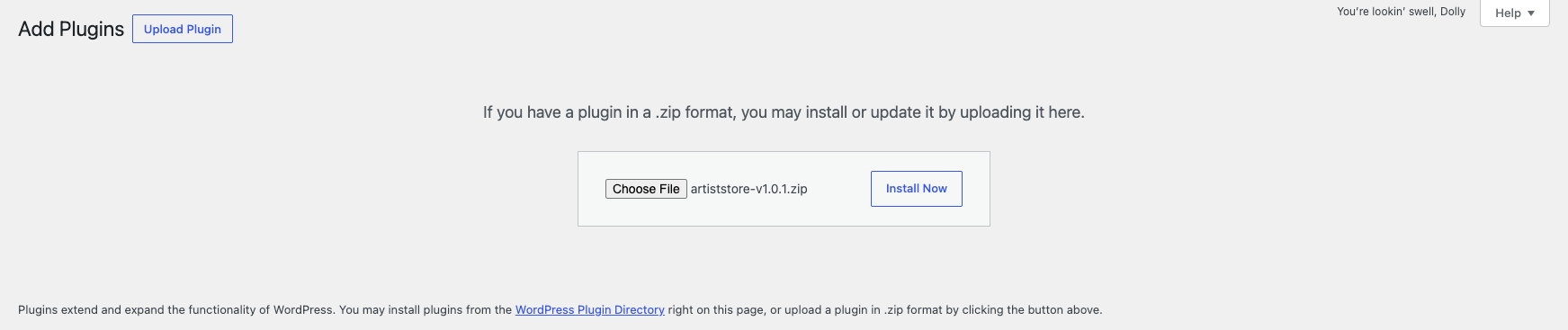
Note: Update WooCommerce to the Latest Version
To ensure the stable and normal operation of the Artiststore plugin, please update your WooCommerce program to the latest official version before integration, so as to avoid integration failures and functional abnormalities caused by version compatibility issues.
Step 4: Activate the installed plugin
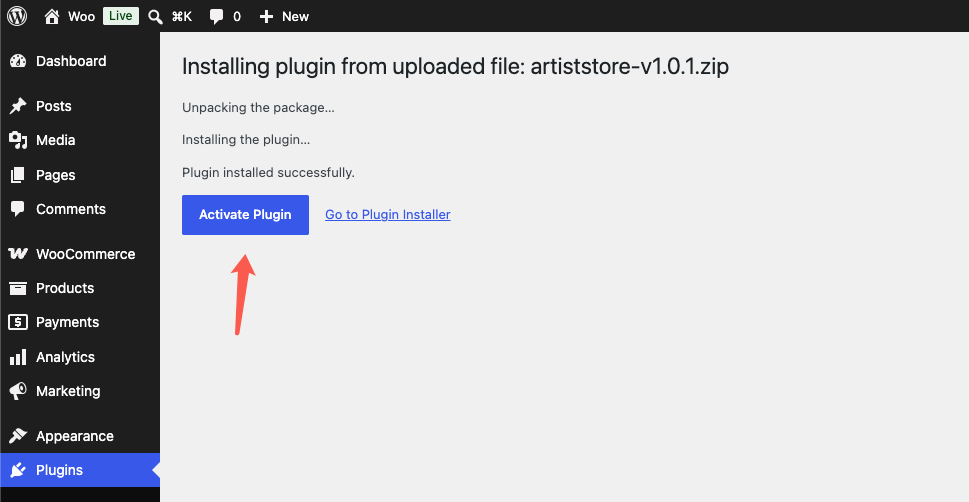
The activated status is displayed as shown below:
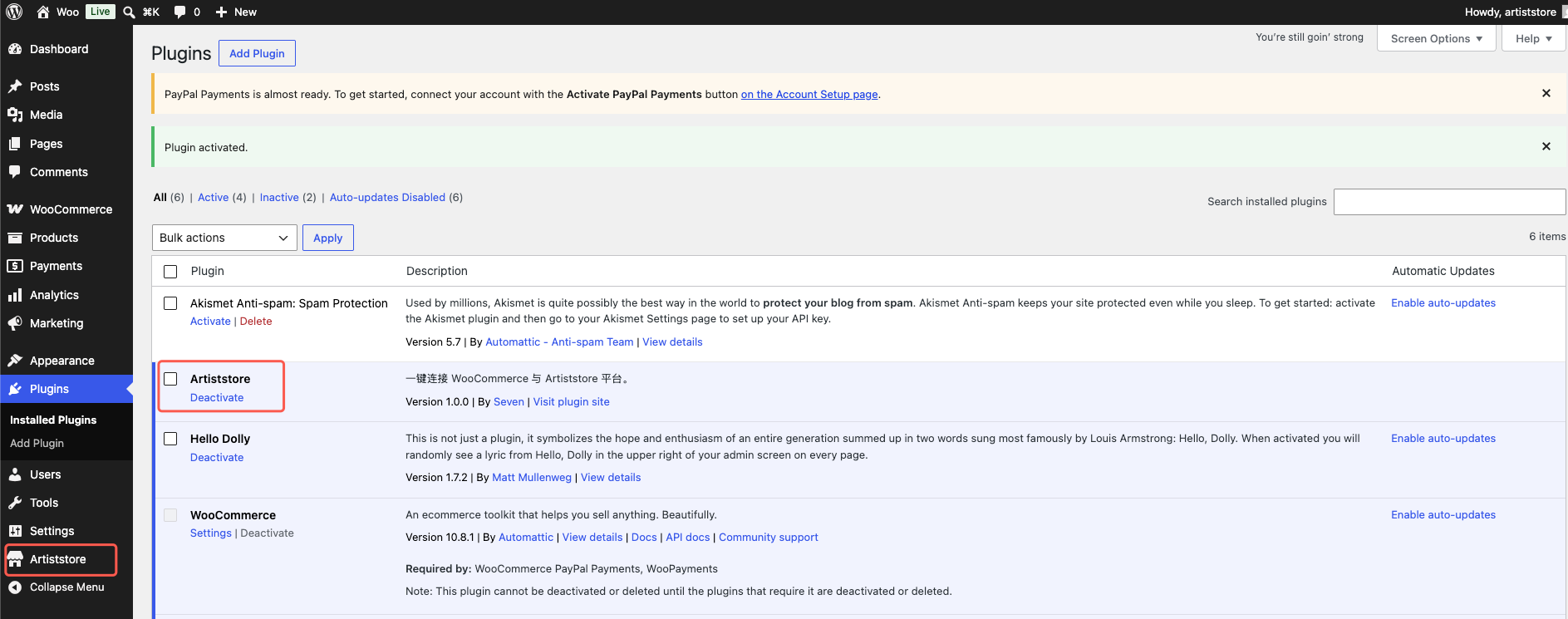
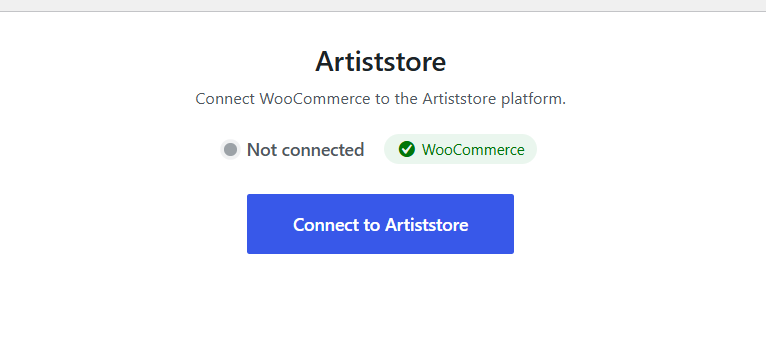
Step 5: Start connecting your WooCommerce store with your Artiststore
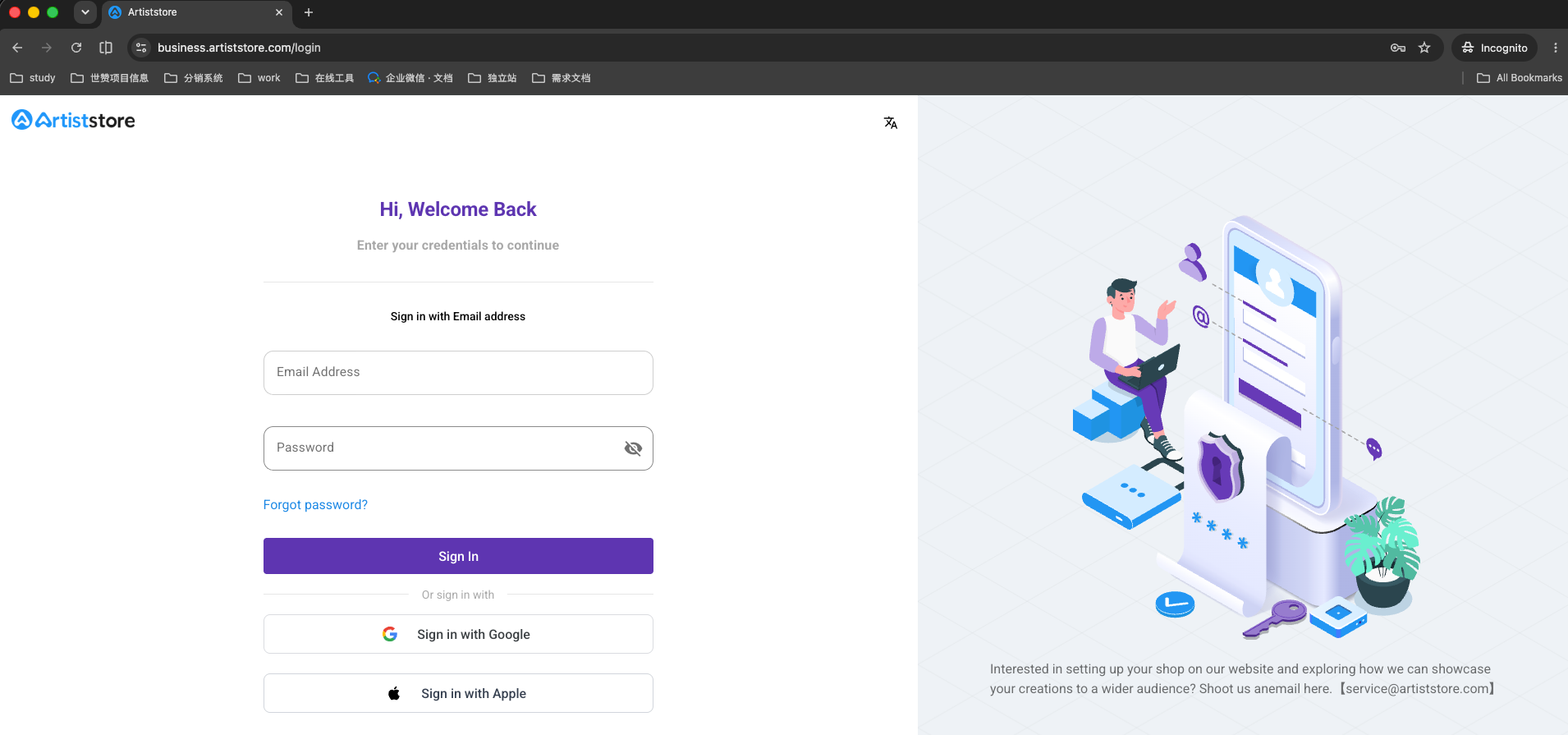
Log in to your Artiststore account
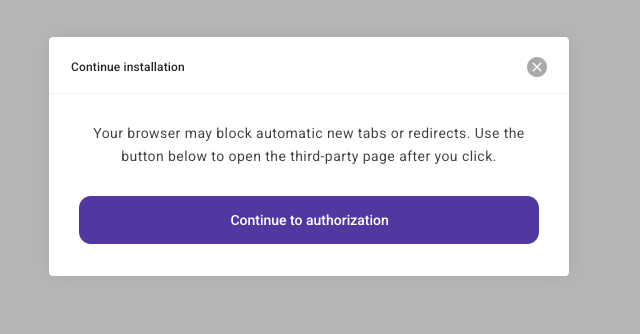
After logging in, confirm the authorization
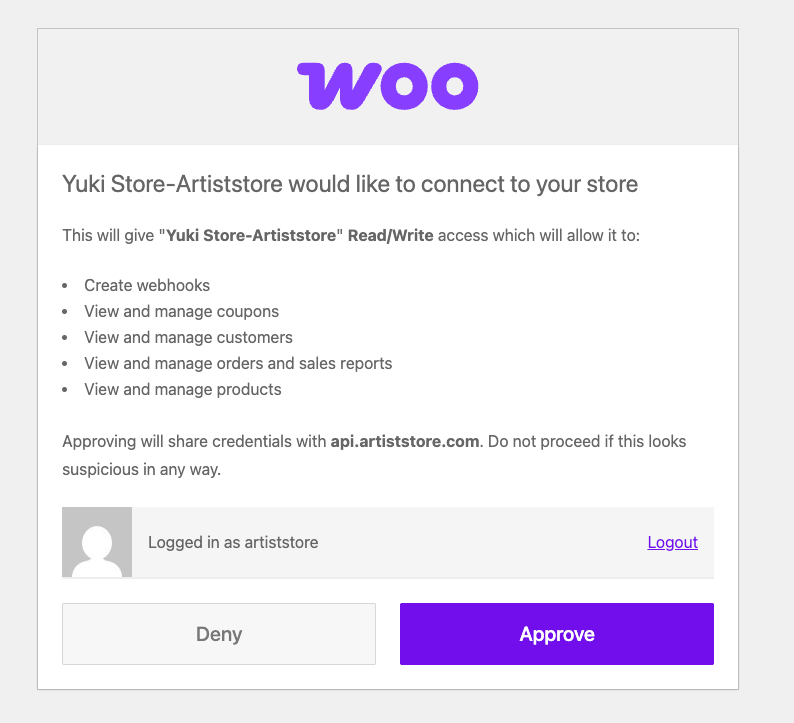
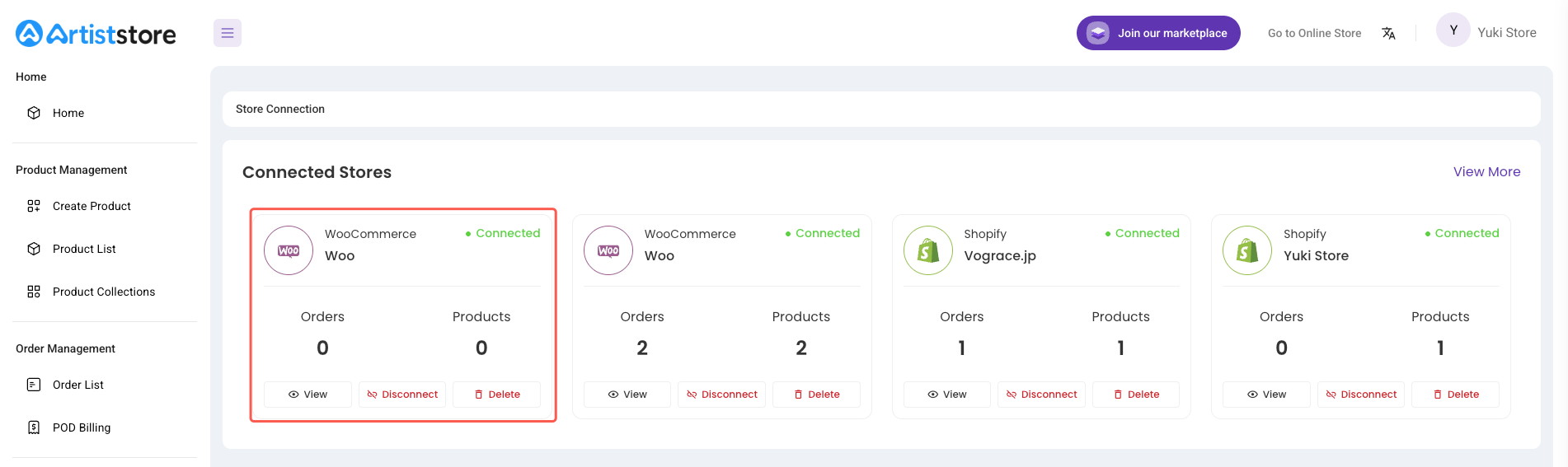
Congrats! Connection successful. Open your Artiststore dashboard, and you will be able to see the connected WooCommerce store status.
Step 6: Sync products from the Artiststore dashboard to WooCommerce
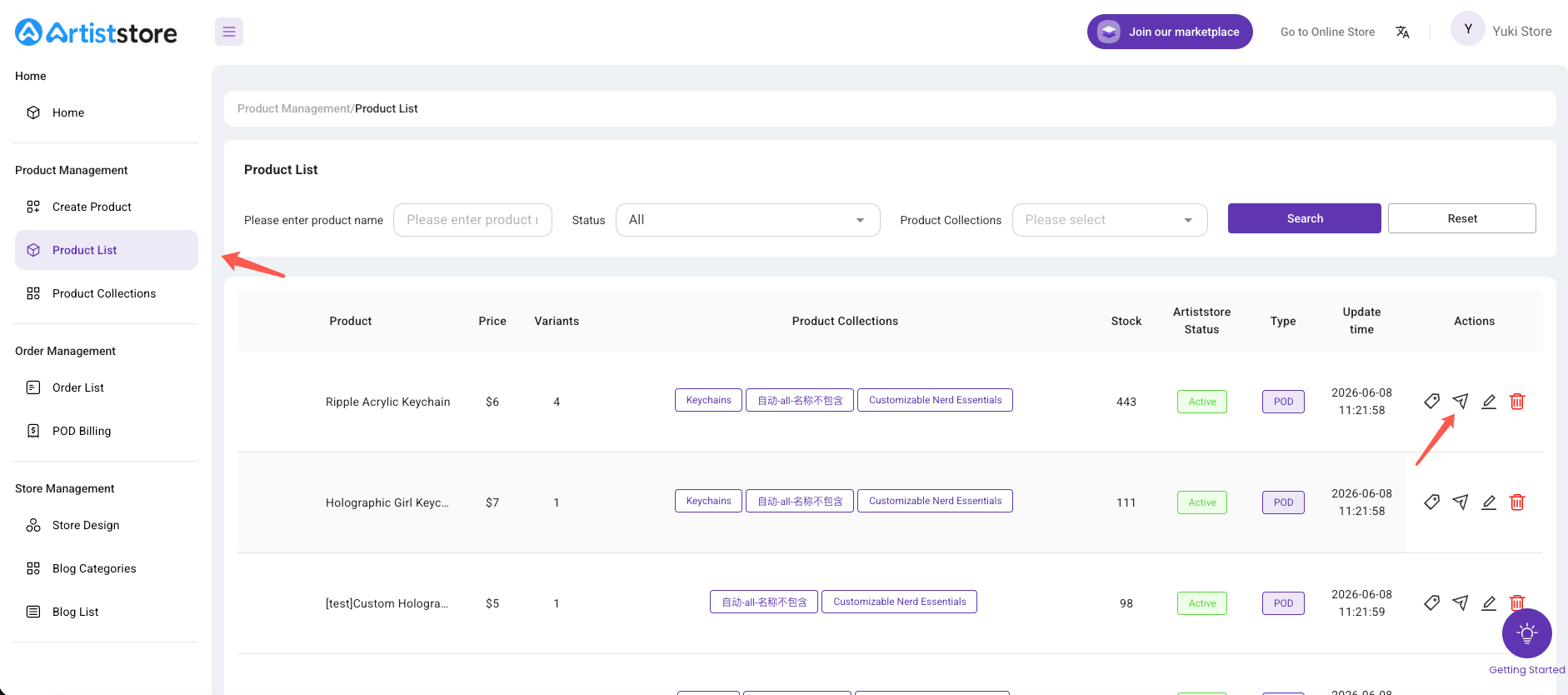
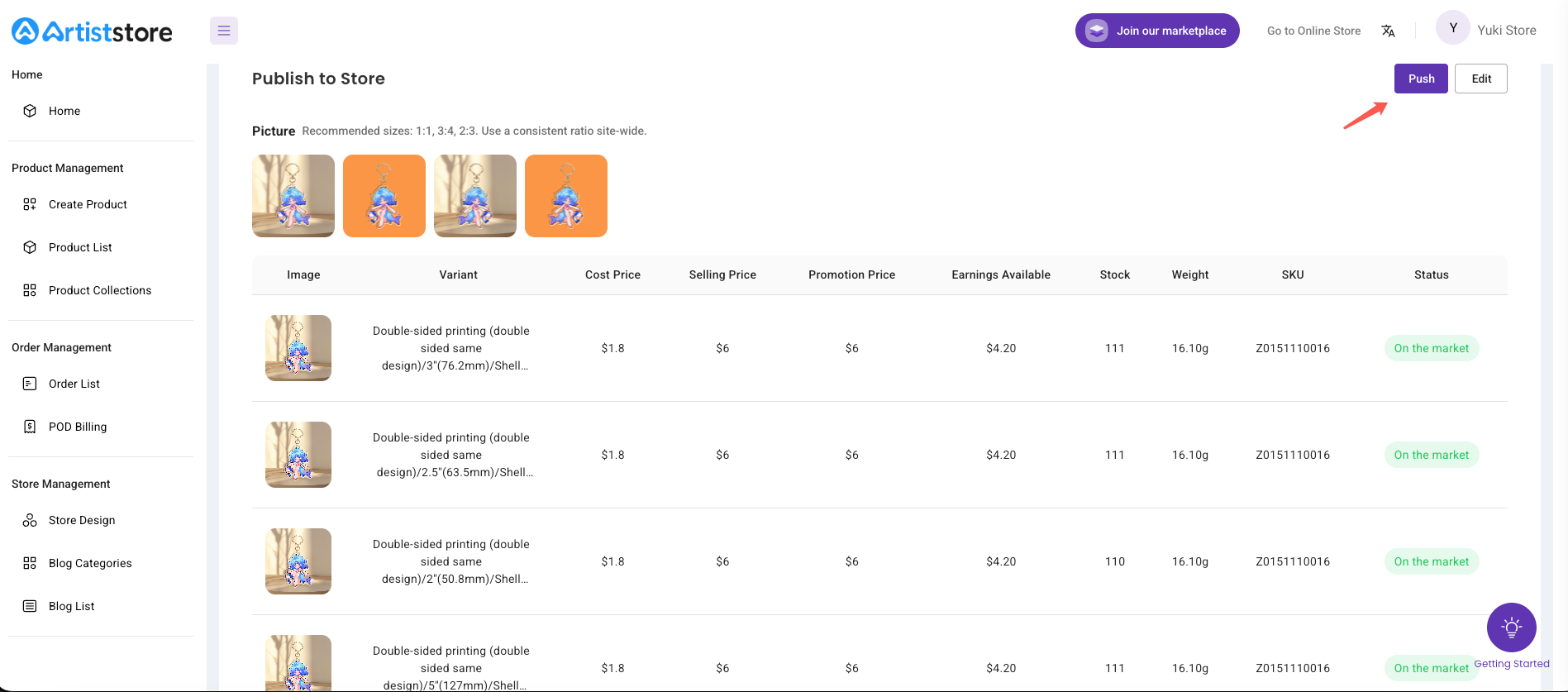
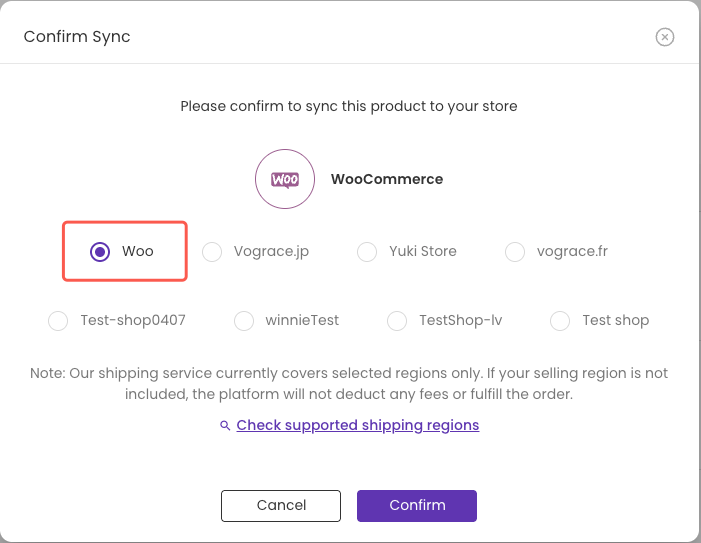
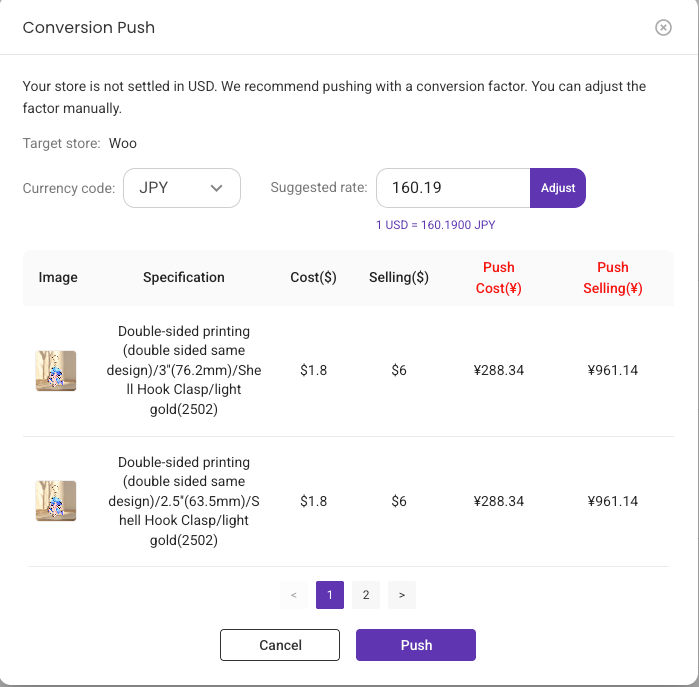
The products have now been successfully synced.

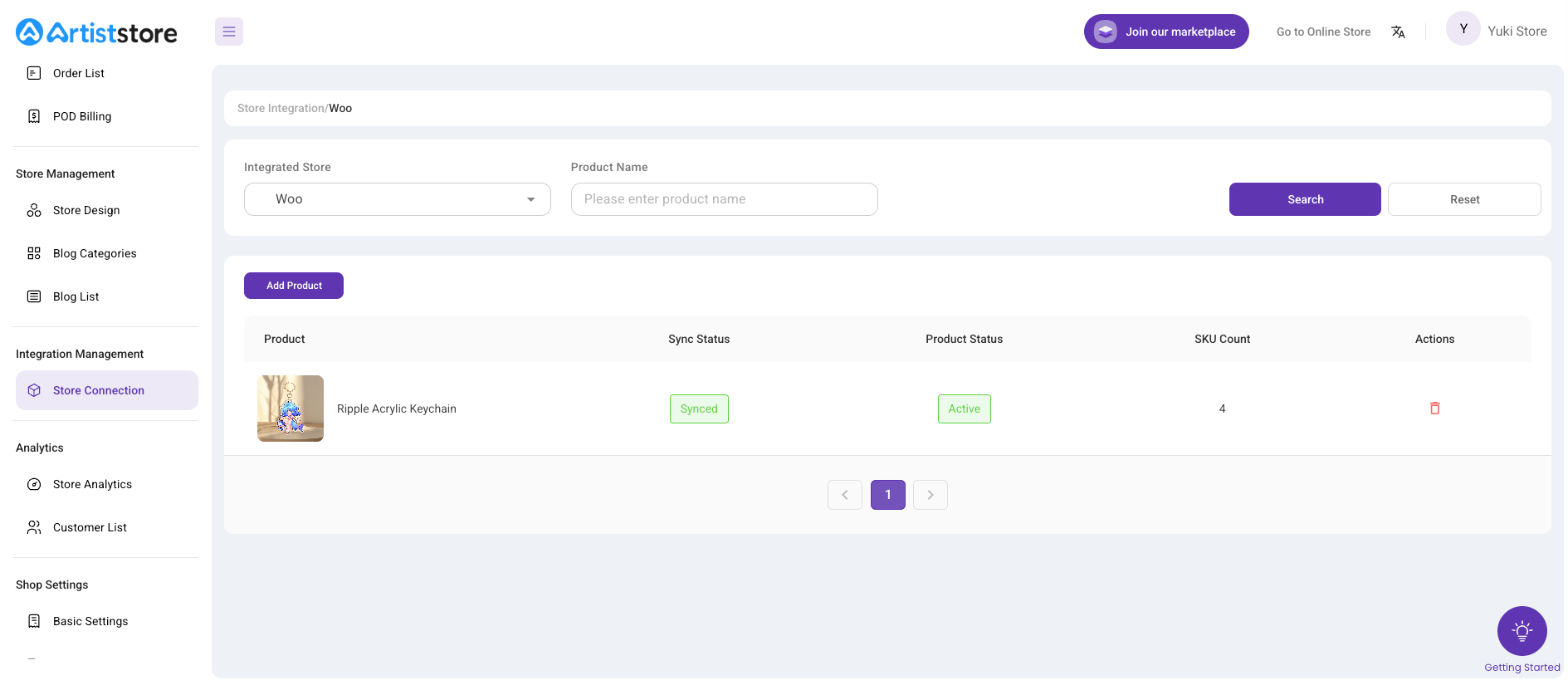
You can now view the synced Artiststore products in your WooCommerce dashboard.

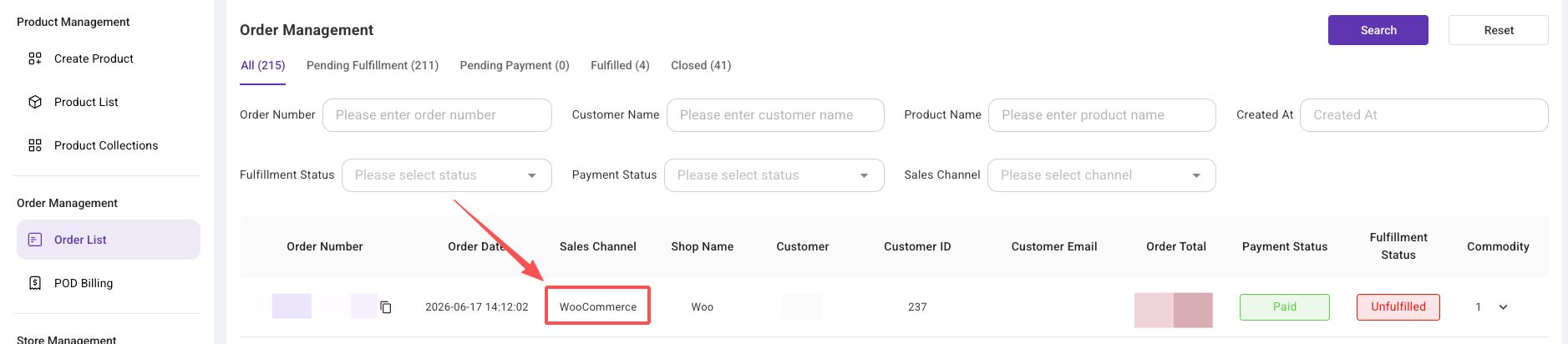
When a customer places an order, you can view the order from WooCommerce on the Order List page in your Artiststore dashboard.
If you want to disconnect WooCommerce from Artiststore, there are two methods:
Method 1: Disconnect directly from the WooCommerce dashboard.
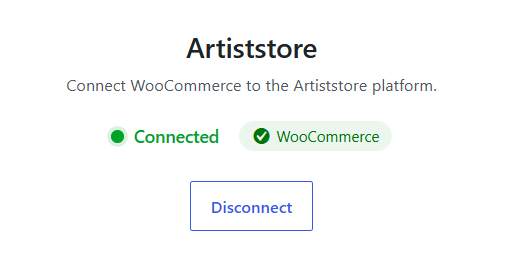
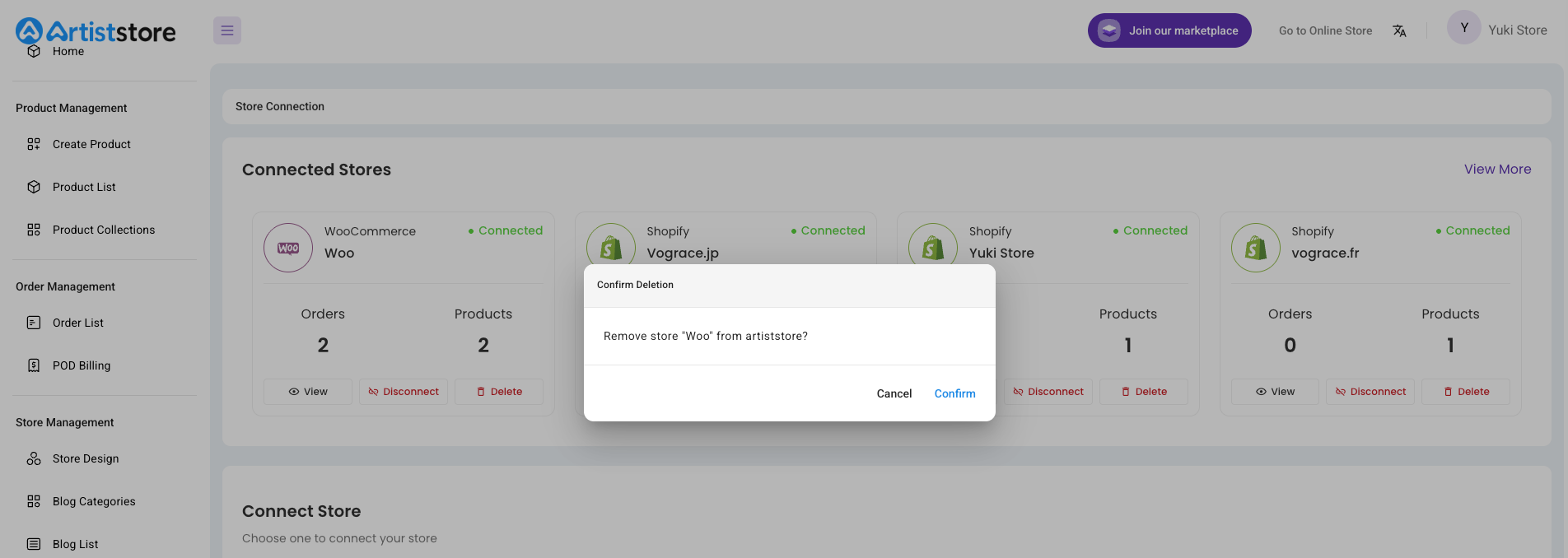
Method 2: Remove it directly from the Integrations page in the Artiststore dashboard.